> ## Documentation Index
> Fetch the complete documentation index at: https://docs.usefrictionless.com/llms.txt
> Use this file to discover all available pages before exploring further.
# Connect WhatsApp
> Link your WhatsApp Business number so every customer message lands in your Frictionless inbox. About two minutes, all inside a Facebook window.
## Before you start
* **Your Facebook login.** Use the account that manages your business on Facebook. No business set up on Facebook yet? You can create one in the window.
* **Your phone, close by.** For a number that isn't on WhatsApp yet, Meta sends a code by SMS or call.
* **On the WhatsApp Business app already?** Keep it. Your chats keep working on your phone and also arrive in Frictionless. On regular WhatsApp, install the free WhatsApp Business app on the same number first.
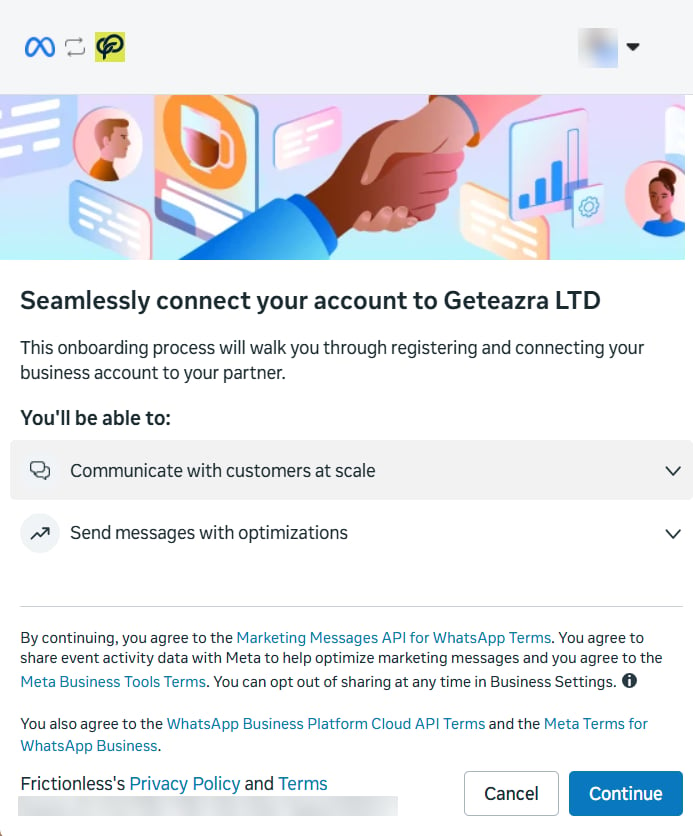
Open **Integrations → WhatsApp** and click **Connect WhatsApp**. For a number that isn't on any WhatsApp app, click **Use a new number instead**. A Facebook window opens; log in if it asks.
The window names **Geteazra LTD**, the company behind Frictionless. That's expected: it's the business Meta has verified for us.
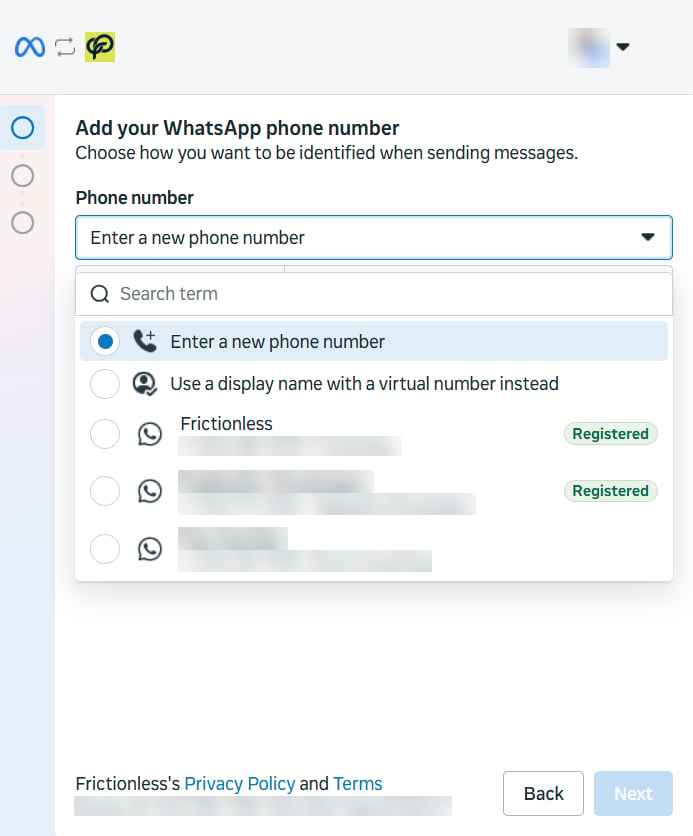
 * **A number marked Registered** is already set up with Meta. Pick it and you skip the code.
* **Enter a new phone number** to add one. Meta asks for the name customers will see, then sends a code to the number. Type it in.
Use a real number your customers already know, then click **Next**.
* **A number marked Registered** is already set up with Meta. Pick it and you skip the code.
* **Enter a new phone number** to add one. Meta asks for the name customers will see, then sends a code to the number. Type it in.
Use a real number your customers already know, then click **Next**.
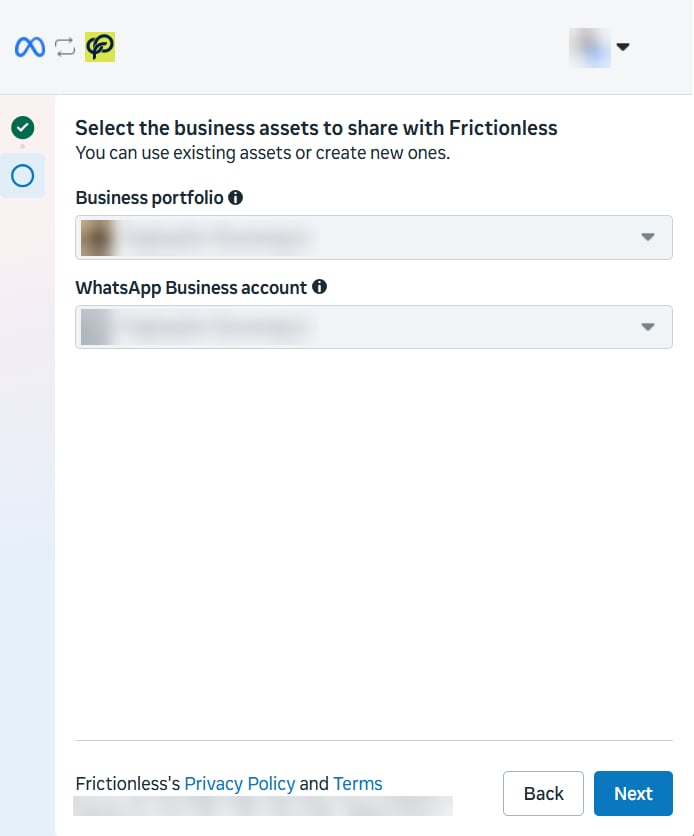
 **Business portfolio** is your business on Facebook. **WhatsApp Business account** is where the number lives. If you picked a registered number, both are filled in. Otherwise choose yours, or create new ones. Click **Next**.
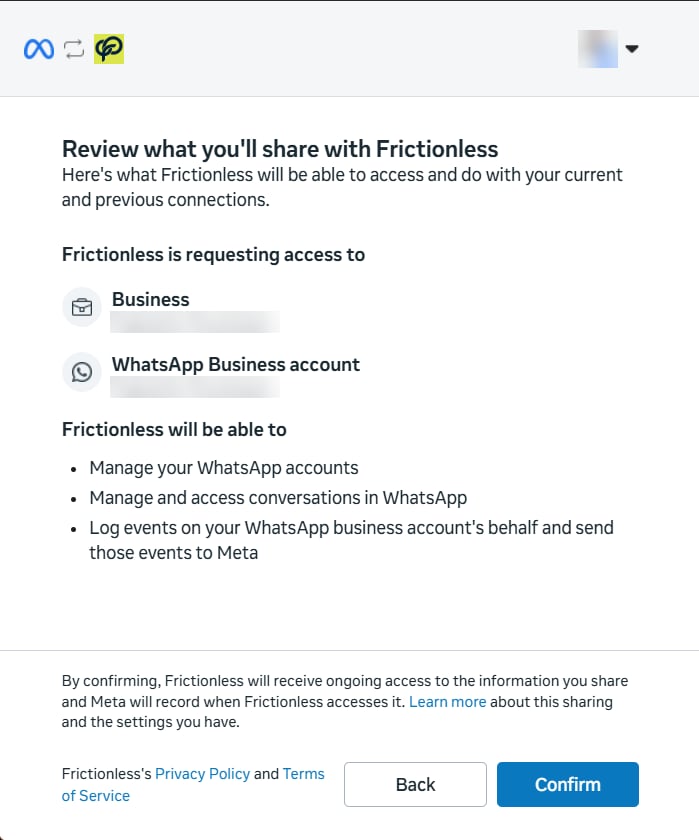
 Meta lists what Frictionless can do: manage your WhatsApp account and its conversations, so you can read and reply from your inbox. Click **Confirm**. The window closes and Frictionless shows **Connected** within a few seconds.
 ## After you connect
* Send a test message from **Integrations → WhatsApp**, and reply to it from your inbox.
* The same page lists anything Meta still needs from you, such as approving your display name or verifying your business. Each item says what to do.
## If it doesn't work
Allow pop-ups for Frictionless in your browser, then click the button again.
Use it on the WhatsApp Business app for a few days, then try again.
Nothing was connected. Start again from step 1.
Still stuck? Email [michael@usefrictionless.com](mailto:michael@usefrictionless.com) and we'll help.
This documentation is built and hosted on [Mintlify](https://mintlify.com), a developer documentation platform.
## After you connect
* Send a test message from **Integrations → WhatsApp**, and reply to it from your inbox.
* The same page lists anything Meta still needs from you, such as approving your display name or verifying your business. Each item says what to do.
## If it doesn't work
Allow pop-ups for Frictionless in your browser, then click the button again.
Use it on the WhatsApp Business app for a few days, then try again.
Nothing was connected. Start again from step 1.
Still stuck? Email [michael@usefrictionless.com](mailto:michael@usefrictionless.com) and we'll help.
This documentation is built and hosted on [Mintlify](https://mintlify.com), a developer documentation platform.